
Meshmixer sometimes fails to open because of GPU compatibility issues, OpenGL problems, corrupted settings, damaged installations, or outdated graphics drivers. Many users experience crashes, black screens, freezing, or startup failures after installing Meshmixer on Windows 10 or Windows 11.
In most cases, the problem is not caused by the STL file itself. Instead, the issue usually comes from graphics rendering, driver conflicts, or system compatibility settings.
This guide explains the most common reasons why Meshmixer does not launch and shows practical fixes that work for many users.
Why Meshmixer Is Not Opening
Meshmixer depends heavily on OpenGL support, GPU drivers, graphics rendering, and Windows compatibility settings.
If one of these components fails, the software may:
- crash immediately
- freeze on startup
- show a black screen
- never load the interface
- close after launch
- fail while importing STL files
The issue is especially common on older laptops, unsupported Intel GPUs, outdated graphics drivers, and Windows 11 systems with old OpenGL support.
Common Meshmixer Startup Problems
Meshmixer Crashes Immediately
Some users report that Meshmixer closes seconds after launching.
Common causes include:
- corrupted installation
- unsupported GPU
- missing OpenGL support
- damaged configuration files
Black Screen on Startup
Meshmixer may open but display only a black or blank screen.
This often happens because:
- GPU drivers are outdated
- OpenGL rendering fails
- Windows graphics settings conflict with the software
Meshmixer Freezes While Loading
The software may become stuck during:
- splash screen loading
- STL importing
- rendering workflows
- GPU initialization
Large or damaged STL files can also trigger freezing.
OpenGL Errors
Meshmixer requires OpenGL support to render 3D meshes correctly.
Without proper OpenGL support:
- the software may fail to launch
- rendering may break
- models may disappear
- crashes may occur frequently
Fix Meshmixer Not Opening on Windows 11
Step 1 — Restart the Computer
Before changing settings, restart your system completely.
Temporary GPU or rendering conflicts sometimes disappear after rebooting.
Step 2 — Run Meshmixer as Administrator
Right-click the Meshmixer shortcut and select:
Run as Administrator
This helps prevent:
- permission issues
- startup conflicts
- blocked rendering access
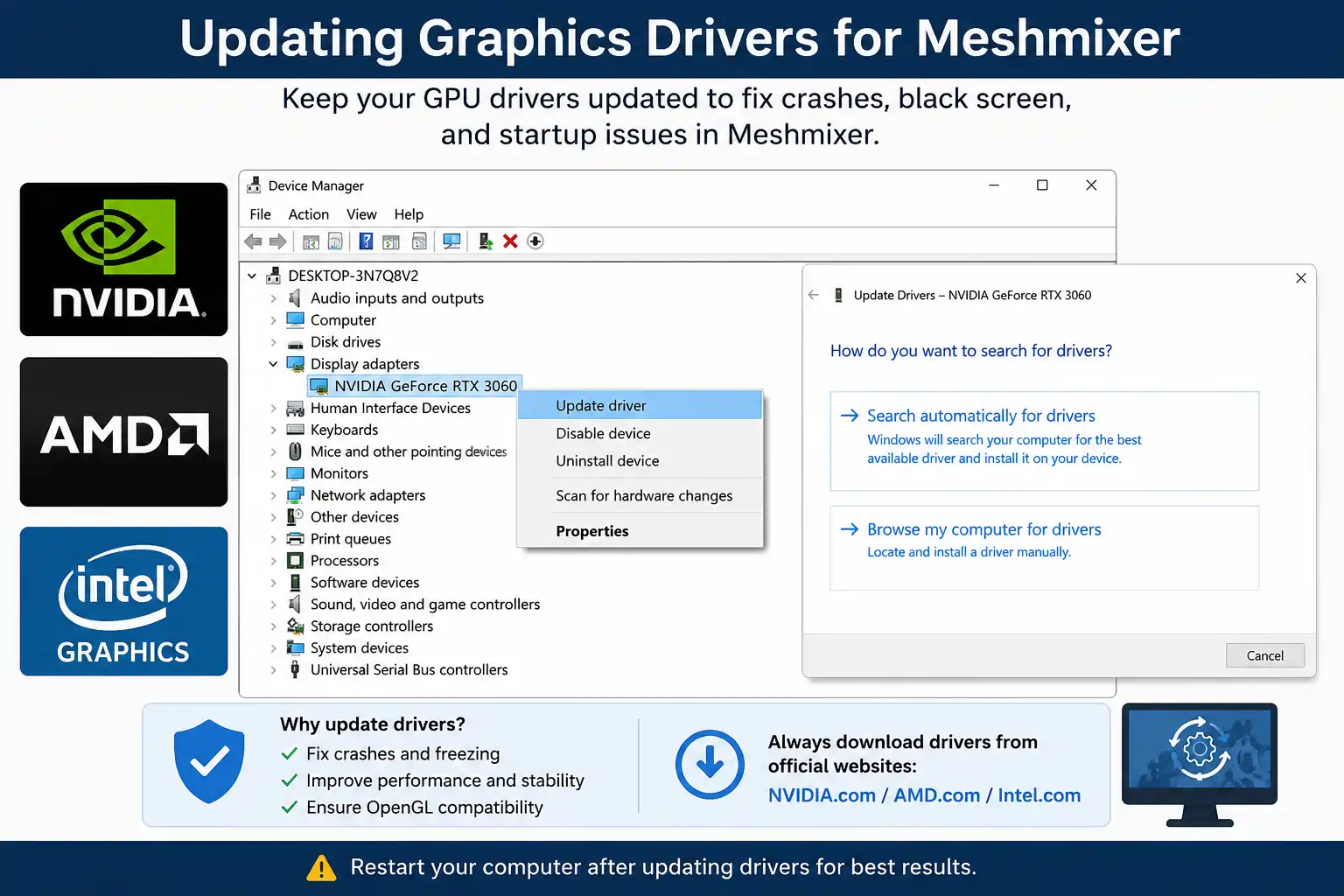
Step 3 — Update Graphics Drivers
Outdated GPU drivers are one of the biggest causes of Meshmixer crashes.
Update drivers for:
- NVIDIA
- AMD
- Intel Graphics
Download drivers only from official manufacturer websites.
Step 4 — Check OpenGL Compatibility
Meshmixer depends on OpenGL rendering.
To check GPU compatibility:
- Press Windows + R
- Type: dxdiag
- Open Display tab
- Check graphics hardware
Older GPUs may not fully support modern OpenGL rendering.
Many Intel HD Graphics laptops experience Meshmixer startup issues because of limited OpenGL support.
Step 5 — Force Dedicated GPU Usage
Some laptops accidentally launch Meshmixer using integrated graphics instead of the dedicated GPU.
NVIDIA Fix:
- Open NVIDIA Control Panel
- Go to Manage 3D Settings
- Select High-performance NVIDIA processor
- Add Meshmixer manually
This often improves:
- startup stability
- rendering performance
- crash prevention
Step 6 — Reinstall Meshmixer Properly
Corrupted installation files can prevent Meshmixer from launching correctly.
Clean reinstall workflow:
- Uninstall Meshmixer
- Delete leftover settings folders
- Restart the PC
- Download the latest installer
- Reinstall the software
You can download the latest version directly from the Meshmixer homepage.
Step 7 — Delete Corrupted Meshmixer Settings
Sometimes Meshmixer fails because old configuration files become corrupted.
Delete:
%APPDATA%\Meshmixer
Then restart the software.
This often fixes:
- black screens
- startup crashes
- loading failures
- broken UI problems
Fix Meshmixer Black Screen
If Meshmixer opens with a black screen:
- update GPU drivers
- disable overlays
- disable screen recording tools
- force dedicated GPU mode
- reset software settings
Programs like MSI Afterburner, RivaTuner, and old overlay software can sometimes conflict with OpenGL rendering.
Meshmixer Crashes While Importing STL Files
Some STL files contain:
- broken geometry
- excessive polygons
- corrupted topology
- non-manifold meshes
These problems can overload Meshmixer during import.
A good workflow is:
- Test smaller STL files first
- Reduce polygon count
- Repair geometry
- Avoid extremely high-poly scans
If damaged STL files are causing crashes, follow this detailed Meshmixer STL repair guide.
Windows Compatibility Mode Fix
Some users solve startup issues using compatibility mode.
Steps:
- Right-click Meshmixer.exe
- Open Properties
- Go to Compatibility
- Enable “Run this program in compatibility mode”
- Select Windows 8 or Windows 10
This may help older systems launch Meshmixer more reliably.
Disable Antivirus Temporarily
Some antivirus software blocks:
- OpenGL rendering
- installer components
- startup processes
Temporarily disabling antivirus can help identify conflicts.
Only download Meshmixer from trusted sources.
Common GPU Compatibility Issues
Intel HD Graphics Problems
Older Intel GPUs often struggle with:
- OpenGL rendering
- large STL files
- high-poly meshes
This can cause:
- freezing
- crashes
- rendering artifacts
NVIDIA & AMD GPU Issues
Even modern GPUs may crash if:
- drivers are outdated
- GPU switching fails
- overlays interfere with rendering
Best Practices to Prevent Meshmixer Crashes
- Keep GPU drivers updated
- Avoid extremely high-poly STL files
- Reduce mesh density before editing
- Restart the software after major operations
- Use Make Solid on damaged scans
- Save projects frequently
- Keep Windows updated
These small steps help improve stability significantly.
Resin Workflow Stability Tips
Many resin users work with hollow models, tree supports, and complex STL geometry that can overload Meshmixer.
For better stability:
- repair STL files before hollowing
- reduce excessive polygon density
- avoid damaged scans
- save versions frequently
You can also follow this complete guide on hollowing resin models in Meshmixer.
For support-generation workflows and stability comparisons, read this article on Tree Supports in Meshmixer vs PrusaSlicer vs Lychee.
Frequently Asked Questions
Why is Meshmixer not opening on Windows 11?
This usually happens because of outdated GPU drivers, OpenGL compatibility issues, corrupted settings, or unsupported graphics hardware.
Does Meshmixer require OpenGL?
Yes. Meshmixer depends heavily on OpenGL rendering for displaying and editing 3D meshes.
Why does Meshmixer crash while importing STL files?
Very large or damaged STL files can overload GPU memory or contain broken geometry that causes crashes.
How do I reset Meshmixer settings?
Delete the Meshmixer settings folder inside AppData to reset corrupted configuration files.
Can old Intel GPUs run Meshmixer?
Some older Intel HD Graphics systems struggle with OpenGL rendering and may experience crashes or black screens.
Is Meshmixer compatible with Windows 11?
Yes. Meshmixer works on Windows 11, but some systems may require updated graphics drivers and compatibility settings.
Conclusion
Meshmixer startup problems are usually caused by GPU drivers, OpenGL rendering issues, corrupted settings, or damaged installations. In many cases, updating graphics drivers, resetting configuration files, or forcing dedicated GPU mode solves the problem quickly. Whether Meshmixer is crashing, freezing, or showing a black screen, these fixes help many users restore stable performance and continue working with STL repair, hollowing, and 3D-printing workflows.