
Many users experience OpenGL errors when launching Meshmixer on Windows 10 or Windows 11. In most cases, Meshmixer either:
- fails to launch
- crashes immediately
- shows a black screen
- freezes during startup
- displays OpenGL compatibility errors
These problems usually happen because Meshmixer depends heavily on OpenGL-compatible graphics drivers. Older GPUs, outdated drivers, Windows updates, or unsupported Intel HD graphics can prevent the software from starting correctly.
Fortunately, most OpenGL errors can be fixed in a few simple steps.
This guide explains:
- why Meshmixer needs OpenGL
- common OpenGL error messages
- how to update graphics drivers
- Windows 10 and Windows 11 fixes
- Intel, NVIDIA, and AMD solutions
- compatibility mode fixes
- GPU requirements
- startup crash solutions
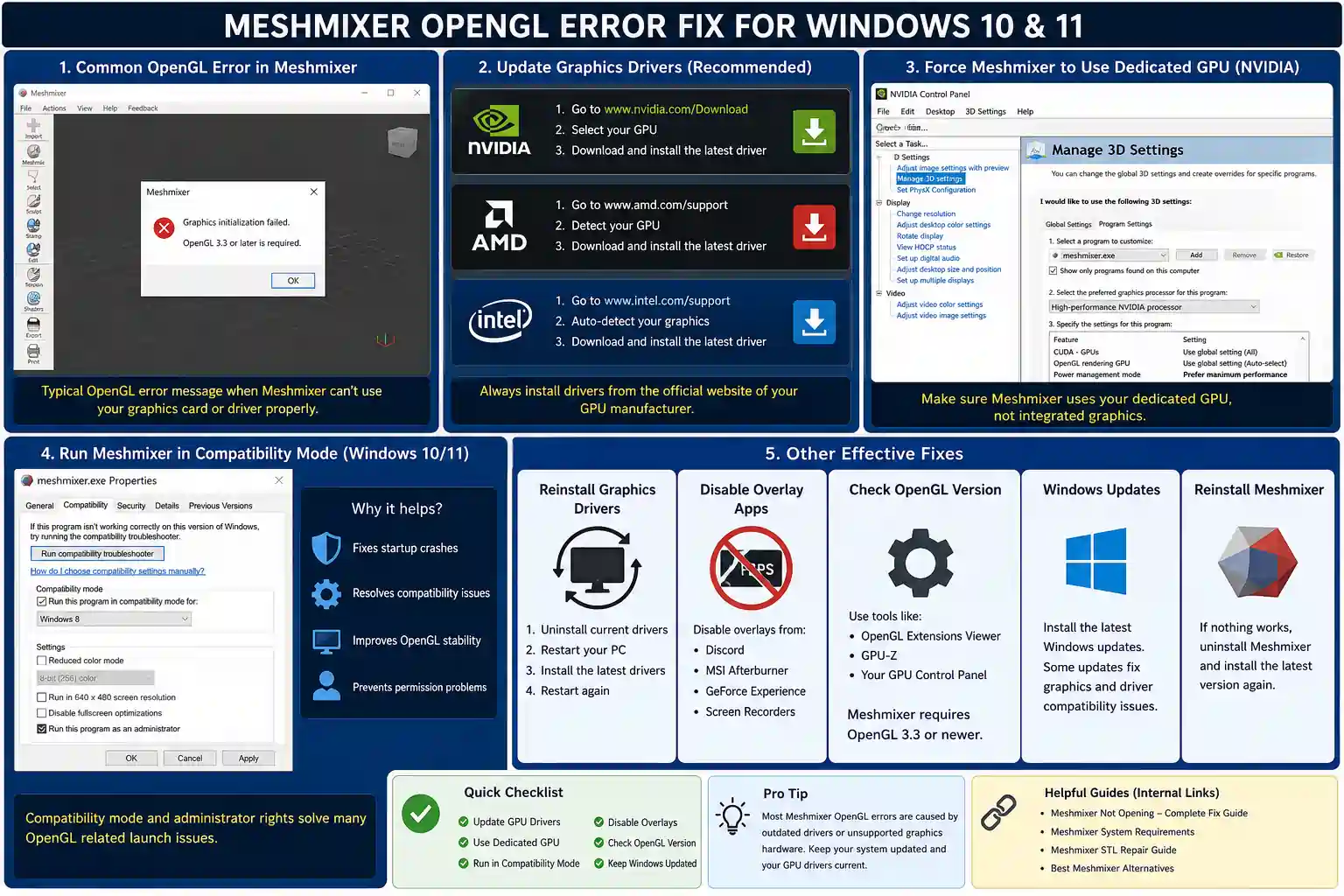
What Is the Meshmixer OpenGL Error?
Meshmixer relies on OpenGL for:
- 3D rendering
- viewport navigation
- mesh editing
- sculpting
- GPU acceleration
If your graphics card does not properly support OpenGL, Meshmixer may display errors such as:
- “OpenGL 3.3 not supported”
- “Graphics initialization failed”
- “Failed creating OpenGL window”
- black startup screen
- application crashes
These errors are most common on:
- older laptops
- outdated Intel HD graphics
- unsupported GPUs
- missing graphics drivers
- Windows systems using generic display drivers
Common Causes of Meshmixer OpenGL Problems
Outdated Graphics Drivers
Old GPU drivers are the most common cause.
Windows Update often installs basic display drivers instead of the full OpenGL-enabled drivers required by Meshmixer.
Unsupported Intel HD Graphics
Older Intel HD chips sometimes lack full OpenGL 3.3 support.
This is common on:
- older office laptops
- budget PCs
- low-power mini PCs
Corrupted OpenGL Installation
Some systems have damaged or incomplete OpenGL driver files after Windows updates or failed driver installations.
GPU Switching Problems
Laptops with:
- Intel integrated graphics
- NVIDIA dedicated GPUs
sometimes launch Meshmixer using the weaker GPU automatically.
Windows Compatibility Issues
Some Windows 11 systems experience startup conflicts with older Autodesk applications.
Minimum GPU Requirements for Meshmixer
Meshmixer works best with:
- OpenGL 3.3 support or newer
- dedicated GPU preferred
- updated graphics drivers
- at least 2 GB VRAM
Recommended GPU brands:
- NVIDIA GeForce
- AMD Radeon
- newer Intel Iris graphics
Older Intel HD graphics may struggle with:
- high-poly STL files
- sculpting
- Boolean operations
- large resin models
Step 1 — Update Graphics Drivers
Updating GPU drivers fixes most OpenGL problems immediately.
Download drivers only from official manufacturer websites:
- NVIDIA
- AMD
- Intel
Avoid third-party driver download tools.
Why This Helps
New drivers include:
- OpenGL updates
- rendering fixes
- compatibility improvements
- crash fixes
Many users solve Meshmixer startup problems simply by installing the latest GPU drivers.
Step 2 — Force Meshmixer to Use Dedicated GPU
On dual-GPU laptops, Meshmixer may launch using weak integrated graphics instead of the dedicated GPU.
NVIDIA Fix
- Open NVIDIA Control Panel
- Go to: Manage 3D Settings → Program Settings
- Add Meshmixer
- Select: High-performance NVIDIA processor
- Save settings
AMD Fix
- Open AMD Radeon Software
- Go to: Graphics Settings
- Assign Meshmixer to: High Performance mode
This often fixes:
- black screens
- startup crashes
- rendering problems
Step 3 — Run Meshmixer in Compatibility Mode
Some Windows 11 systems run Meshmixer more reliably in Windows 8 compatibility mode.
How to Enable Compatibility Mode
- Right-click Meshmixer.exe
- Open Properties
- Go to Compatibility
- Enable: Run this program in compatibility mode
- Select: Windows 8
- Click Apply
Many users also enable:
- Run as Administrator
This helps prevent:
- permission issues
- startup failures
- rendering conflicts
Step 4 — Reinstall Graphics Drivers Cleanly
Sometimes drivers become corrupted after Windows updates.
A clean reinstall often fixes hidden OpenGL problems.
Recommended Workflow
- Uninstall current GPU drivers
- Restart PC
- Download latest official drivers
- Install fresh drivers
- Restart again
- Launch Meshmixer
Avoid relying only on Windows Update drivers because they may not include full OpenGL support.
Step 5 — Disable Overlay Software
Some overlay applications conflict with OpenGL rendering.
Examples include:
- MSI Afterburner overlays
- Discord overlays
- screen recording software
- FPS monitoring tools
Temporarily disable overlays and relaunch Meshmixer.
Step 6 — Check OpenGL Version
You can verify OpenGL support using:
- OpenGL Extensions Viewer
- GPU-Z
- manufacturer driver panels
Meshmixer generally requires:
- OpenGL 3.3 or newer
If your GPU does not support OpenGL 3.3, the software may never run properly.
Intel HD Graphics Problems
Older Intel HD graphics are one of the biggest causes of Meshmixer OpenGL issues.
Common affected GPUs:
- Intel HD 3000
- Intel HD 4000
- older mobile chipsets
Symptoms include:
- black viewport
- crashes during sculpting
- failed startup
- invisible UI
- severe lag
Possible Fixes
- install latest Intel drivers
- reduce viewport complexity
- avoid high-poly models
- disable overlays
- use compatibility mode
Windows 11 OpenGL Issues
Windows 11 occasionally introduces:
- driver conflicts
- security restrictions
- rendering incompatibilities
Recommended Fixes
- update GPU drivers
- install latest Windows updates
- use compatibility mode
- run as administrator
- reinstall Meshmixer cleanly
If Meshmixer still crashes, follow this complete Meshmixer Not Opening guide.
Meshmixer Still Crashing After OpenGL Fix?
If the OpenGL error disappears but Meshmixer still crashes:
- reset preferences
- reinstall Meshmixer
- remove corrupted plugins
- test smaller STL files
- avoid damaged meshes
Large non-manifold models can also cause crashes during loading.
You can repair damaged files using this Meshmixer STL files repair.
Best Alternatives If OpenGL Errors Continue
Some older systems may never fully support Meshmixer correctly.
In that case, alternatives include:
- Blender
- MeshLab
- Microsoft 3D Builder
- Lychee Slicer
- Fusion 360
You can compare them here: Best Meshmixer Alternatives
Frequently Asked Questions
Why does Meshmixer say OpenGL 3.3 not supported?
Your graphics card or drivers likely do not support the required OpenGL version needed for Meshmixer rendering.
Can Intel HD graphics run Meshmixer?
Some newer Intel Iris and Intel HD models work properly, but older Intel HD chips often struggle with OpenGL compatibility.
Does Meshmixer work on Windows 11?
Yes, but some users experience startup or OpenGL issues that usually require updated GPU drivers or compatibility mode fixes.
Why does Meshmixer show a black screen?
Black screens are often caused by outdated GPU drivers, GPU switching problems, or unsupported OpenGL versions.
Can outdated drivers cause Meshmixer crashes?
Yes. Old graphics drivers are one of the most common reasons Meshmixer fails to launch correctly.
Is Meshmixer still supported?
Autodesk still provides downloads, but major feature updates have slowed significantly.
Conclusion
Most Meshmixer OpenGL errors are caused by outdated graphics drivers, unsupported GPUs, or Windows compatibility problems. In many cases, updating GPU drivers and forcing Meshmixer to use the dedicated graphics card fixes the issue immediately. Older Intel HD graphics remain the most common source of OpenGL problems, especially on budget laptops and older PCs. If Meshmixer still fails to run properly, alternative mesh-editing tools such as Blender or MeshLab may provide a more stable workflow.